Monday, November 20, 2023

Outlook to PDF: A Look at Three Ways to Convert Outlook Emails to PDF Documents

 Efficiently converting Outlook emails to PDFs is crucial for various applications and projects, from archiving communications to facilitating document sharing. This guide explores three methods, ranging from manual processes to more technical approaches.

Method 1: Manual Conversion

  1. Open Outlook:

    • Start the Outlook application.
  2. Select Emails:

    • Create a set of emails in Outlook through search. Select one or more email to convert.
  3. Print to PDF:

    • Navigate to File > Print and choose "Microsoft Print to PDF."
    • Execute the print operation, saving the file as a PDF.

Method 2: Automated Software


Explore our Windows software tools that are optimized for Outlook email to PDF conversion:

Method 3: VBA Script in Outlook

For the more technically inclined:

  1. Open Outlook:

    • Access the VBA editor using Alt + F11.
  2. Insert Module:

    • Add a module via Insert > Module.
  3. Paste Code:

    • Utilize the provided VBA code or customize as needed.

     Sub ExportToPDF()
        Dim objSelection As Outlook.Selection
        Dim objMail As Outlook.MailItem
        Dim objWord As Object
        Dim objDoc As Object

        ' Get the selected emails
        Set objSelection = Outlook.Application.ActiveExplorer.Selection

        ' Create a new Word application
        Set objWord = CreateObject("Word.Application")
        objWord.Visible = True ' You can set this to False if you don't want to see Word

        ' Loop through selected emails and export to PDF
        For Each objMail In objSelection
            ' Create a new Word document
            Set objDoc = objWord.Documents.Add
            ' Copy the email content to the Word document
            objMail.GetInspector.WordEditor.Range.FormattedText.Copy
            objDoc.Range.Paste
            ' Save the document as PDF
            objDoc.ExportAsFixedFormat Environ("USERPROFILE") & "\Desktop\" & objMail.Subject & ".pdf", 17 ' 17 represents PDF format
            ' Close the Word document
            objDoc.Close
        Next

        ' Close Word application
        objWord.Quit
        Set objWord = Nothing
    End Sub


  4. Run the Macro:

    • Execute the macro with Alt + F8 and select "ExportToPDF."

Choose the method aligning with your technical skills and needs, ensuring backups before bulk operations.

Wednesday, October 25, 2023

How to Bulk Convert Outlook Email to PDF with MessageExport Add-in

Saving Outlook Emails as PDF Files is easy with MessageExport.

MessageExport Add-in for Outlook email conversion.

Email communication remains a cornerstone of our personal and professional lives. Microsoft Outlook, a popular client for email management, offers a range of features for email organization, but its built-in capabilities for exporting emails to different formats is severely lacking. Thats why Encryptomatic LLC built MessageExport, a versatile add-in that integrates with the Outlook menu system to bring new enhanced email export capabilities to Outlook, including bulk export of emails to PDF format. In this article, we will explore how MessageExport simplifies the process of converting Outlook emails to PDF and why it's an indispensable tool for email users wanting more control and efficiency in managing their email correspondence.

A Seamless Solution for PDF Export:

MessageExport is a feature-rich add-in that seamlessly integrates with Microsoft Outlook, providing an efficient and user-friendly way to export emails to PDF format. Here's how it simplifies the process:

Expanded PDF Export Options: MessageExport offers a variety of PDF export options, ensuring you can customize your PDFs to meet your specific needs. You can choose from single PDF files, one PDF per email, or combine multiple emails into a single PDF document, tailoring the export to your preferences.

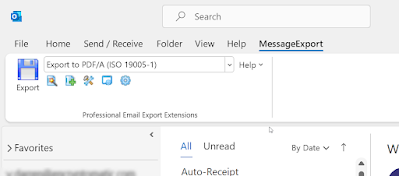
Screen inage of MessaegExport selection menu.


Attachments Included: MessageExport doesn't stop at exporting the email content itself; it also takes care of email attachments. You can decide whether to include attachments within the PDF document or save them separately, giving you greater flexibility in how you manage your email content.

Customized Output: The add-in allows users to create custom naming conventions for exported PDF files, ensuring that you can organize your PDFs according to your preferred structure, making retrieval a breeze.

Batch Export: Handling a multitude of emails at once is simplified with MessageExport. You can select multiple emails and export them in a batch, saving time and effort in the process.

Scheduling: MessageExport enables you to automate your email export tasks by scheduling them. Whether you need to back up your emails regularly or produce reports, this feature ensures that your PDF exports are generated automatically and on time.

Why Choose MessageExport for Exporting Outlook Emails to PDF?

So, why should you consider MessageExport for exporting Outlook emails to PDF? Here are some compelling reasons:

Efficiency: MessageExport significantly streamlines the email export process. It is a powerful tool for professionals who frequently need to save, share, or archive their email correspondence.

Versatility: The add-in offers multiple export options, allowing you to create PDFs tailored to your specific needs. Whether you require single PDF files, one PDF per email, or combined PDF documents, MessageExport has you covered.

Organization: The ability to customize naming conventions and batch export emails enhances the organization of your PDF exports. You can maintain a well-structured archive of your emails, ensuring easy retrieval and management.

Security: Developed by Encryptomatic LLC, a trusted name in data security, MessageExport prioritizes the safety of your email content during the export process. Your data is handled with the utmost security and integrity.

How to Convert Outlook Emails to PDF:

First, choose the email or emails you want to convert to PDF from the Microsoft Outlook email list. You can also select an entire Outlook folder.

Second, choose the PDF export style from the MessageExport drop down menu. There are several options to choose from, including individual emails to individual PDF files, or multiple emails to a single PDF. Select the export style that best fits your project.

Finally, click the "Export" button and choose your folder location. MessageExport will go to work converting your selected emails.

Enhancing Your Email Management:

In a world where email communication is at the forefront of our personal and professional lives, it's crucial to have the right tools to manage and export emails effectively. MessageExport offers Outlook users an essential solution for exporting emails to the widely accepted PDF format, making it easier to store, share, and organize important correspondence.

With its diverse export options, attachment handling, customizable naming conventions, and scheduling capabilities, MessageExport simplifies the process and enhances your control over email exports. Whether you need to comply with regulatory requirements, maintain an efficient knowledge management system, or streamline collaboration, MessageExport is an invaluable addition to your Outlook toolkit.

In conclusion, MessageExport is the ideal tool to simplify your Outlook email management and export Outlook emails to PDF. Developed by Encryptomatic LLC, it provides the efficiency and versatility you need to meet your specific email export requirements, ensuring your important email correspondence is easily accessible, secure, and well-organized.

Try it free for 15 days!

If you are working with multiple Outlook PST files, you may prefer to work outside of Outlook. If an Outlook add-in isn't the best option for you, we suggest looking into MailDex. It has many of the same export features of MessageExport, but it is a stand alone Windows application. MailDex will also export emails to PDF, but works in a slightly different manner. With MailDex, Outlook is not required to be present on your computer.

Learn more about MailDex and get a free 15 day trial.

Wednesday, September 27, 2023

MessageExport Add-in: The "Must Have" Tool For Microsoft Outlook


In today's digital age, email communication has become an integral part of our personal and professional lives. Microsoft Outlook, a widely used email client, offers a robust platform for managing emails. However, when it comes to exporting emails, Outlook's built-in capabilities can sometimes leave users wanting more. This is where MessageExport, an add-in developed by Encryptomatic LLC, comes to the rescue. In this article, we'll delve into the main features of MessageExport and explore why it is a "must-have" add-in for Outlook users, enhancing the ability to export emails efficiently.

MessageExport box illustration showing the toolbar and logo.


The Power of MessageExport:

MessageExport is a feature-packed add-in that seamlessly integrates with Microsoft Outlook, extending its functionality for email export tasks. Here are some of its main features:

  1. Diverse Export Formats: MessageExport offers a wide range of email export file formats, including PDF, HTML, MHT, Text, images, CSV for Excel spreadsheets, and more. This flexibility ensures that users can choose the format that best addresses their email project needs, whether it's archiving emails for legal compliance, sharing messages with colleagues, or creating a document for reference.

  2. Batch Processing: For those dealing with large volumes of emails, MessageExport simplifies the process by allowing batch export. Users can select multiple emails in Outlook and export them all at once, saving precious time and effort.

  3. Customized Naming Conventions: The add-in lets users define their own naming conventions for exported files. This means you can organize your exported emails systematically, making it easier to locate specific messages later.

  4. Attachment Handling: MessageExport doesn't just export emails; it also handles email file attachments efficiently. You can choose to export attachments along with the email or save them separately, further enhancing your control over the export process.

  5. Scheduling: Need to export emails on a regular basis? MessageExport offers scheduling options, allowing you to automate repetitive export tasks. This is particularly useful for businesses that require regular email backups or reports.

  6. Filtering and Sorting: With MessageExport, you can apply filters to your email selection, ensuring that only specific messages are exported. You can also sort emails by date, sender, subject, and other criteria, making it easy to export the exact emails you need.

Why MessageExport is a "Must-Have" for Outlook:

MessageExport isn't just another Outlook add-in; it's a game-changer for anyone who relies on email communication. Here's why it's a "must-have":

  1. Efficiency: MessageExport streamlines the email export process, making it significantly faster and more convenient. This efficiency is crucial for professionals who frequently need to save, share, or archive their email correspondence.

  2. Versatility: Its extensive range of export formats ensures that MessageExport caters to diverse user needs. Whether you need to save emails as PDFs for legal purposes or as HTML for web publishing, MessageExport has you covered.

  3. Organization: The ability to customize naming conventions and sort emails simplifies the process of managing exported emails. You can maintain a well-structured email archive, making it easy to retrieve specific messages when needed.

  4. Security: MessageExport is developed by Encryptomatic LLC, a reputable company known for its commitment to data security. Users can trust that their emails and attachments are handled securely during the export process.

Why People Need to Export Emails:

Emails serve as a crucial record of communication, both in personal and professional contexts.  There are several reasons why people need MessageExport to assist them in Outlook email conversion:

  1. Compliance: Many industries, such as healthcare and finance, are subject to strict regulatory requirements that mandate the retention of email correspondence for a specified period. Exporting emails ensures compliance with these regulations.

  2. Knowledge Management: Businesses often use exported emails to create knowledge bases, training materials, or case studies. This facilitates information sharing and enhances organizational knowledge management.

  3. Legal Requirements: In legal matters, emails can serve as evidence or documentation. Exporting emails in a tamper-proof format like PDF ensures their authenticity and integrity.

  4. Collaboration: Exported emails can be easily shared with colleagues, clients, or external partners. This is particularly useful when collaborating on projects or sharing information with stakeholders.

In conclusion, MessageExport is a valuable add-in for Microsoft Outlook that enhances the email export capabilities of this popular email client. Its powerful features, including diverse export formats, batch processing, and customization options, make it an indispensable tool for users who rely on Outlook for their email communication. Whether you need to comply with regulations, manage knowledge, meet legal requirements, or streamline collaboration, MessageExport simplifies the process, making it an essential addition to your Outlook toolkit. Developed by Encryptomatic LLC, MessageExport brings efficiency and security to the forefront, ensuring that your email export tasks are carried out seamlessly and securely.

Try MessageExport Free for 15 Days!

Monday, April 3, 2023

Introducing MessageExport Add-in For Microsoft Outlook

Microsoft Outlook is one of the most widely used email clients in the world, providing a range of useful features that make managing emails a breeze. However, despite its many benefits, there are still some areas where Outlook falls short, particularly when it comes to converting and saving Outlook emails outside of Outlook OST/PST files. That's where MessageExport comes in - an add-in designed to make exporting Outlook emails and attachments easier than ever before.

MessageExport is an innovative add-in that seamlessly integrates with Outlook, adding new features that allow Outlook users to quickly and easily export emails and attachments to different formats. With MessageExport, users can export emails to PDF, HTML, MSG, and other file types, making it easier to share important messages with colleagues, clients, and other stakeholders.

One of the key benefits of MessageExport is its versatility - it works with a wide range of Outlook versions, from Outlook 2010 to the most recent Outlook 365, making it a great option for businesses of all sizes. Additionally, MessageExport is incredibly user-friendly, with an intuitive interface that makes it easy to navigate and use, even for those who are new to email add-ins.

Screen image of the MessageExport toolbar in Outlook.


Another major advantage of MessageExport is its speed and efficiency. With MessageExport, users can export hundreds or even thousands of emails and attachments with just a few clicks, saving time and reducing the risk of errors or omissions. Additionally, MessageExport is incredibly powerful, allowing users to filter, sort, and organize emails and attachments based on a range of different criteria, making it easier to find the information they need quickly and easily.

Of course, there are other email add-ins available for Outlook, so why should users choose MessageExport over the competition? For starters, MessageExport is incredibly affordable, with pricing starting at just $89.99 for a single user license. Additionally, MessageExport offers a range of advanced features that aren't available with other add-ins, such as the ability to automatically convert emails to PDF format based on predefined rules, automatic export of emails on a timed basis, exporting emails to XML, CSV and many other formats, and much more.

Screen image of MessageExport toolbar in Microsoft Outlook. The toolbar is expanded showing dozens of file formats that Outlook email may be formatted as.


If you're an avid user of Microsoft Outlook who is looking to expand Outlook's usefulness, you'll find MessageExport to be a powerful, versatile, and affordable email add-in that can help you manage your emails and attachments more efficiently.  For Outlook power users, MessageExport is definitely worth considering just based on all the time it will save you. With its intuitive interface, powerful features, and competitive pricing, MessageExport is a great option for businesses of all sizes, and can help you save time, reduce errors, and streamline your email workflow.

Try MessageExport free!

Monday, January 23, 2023

Save Outlook Emails as PDF Files Free, with MessageExport™ Add-in.

MessageExport™ is an add-in software product offered by Encryptomatic that allows users to export and convert email messages from Microsoft Outlook for Windows. MessageExport can be used to save email messages in many different file formats, including PDF, CSV, EML, MBOX, HTML, and MHT. It also allows users to automate the process of exporting and converting messages. With MessageExport, users can schedule exports,  and even export attachments. 

MessageExport is free to try for 15 days.  Following the free trial, MessageExport reverts to "Free Mode", which allows users to continue saving individual emails to PDF.  A purchased full version license enables MessageExport to save multiple emails, but if your needs are simple and you only need to convert an occasional email to PDF, then MessageExport in free mode will work nicely. 

Download the Free Trial and follow along.

After installing MessageExport, you will find the software integrated with the Microsoft Outlook menu bar.


Shows the location of the MessageExport email exporter toolbar in Microsoft Outlook 365.

Clicking on the toolbar tab will show you the MessageExport tools. 

To export an email, click on an email (or multiple emails) to highlight.  Then, choose the target export format from the MessageExport drop down list. You may want to choose "Export to PDF - attachments included."  This export profile will save your email to a PDF while also attempting to convert attached documents into the PDF.


Screen shot of MessageExport toolbar, showing the dropdown list from which a user may select from many different email target conversion formats. Highlighted is "PDF - Attachments included/converted"

Finally, click the blue Export button to being the export process. MessageExport will convert your Outlook email and file attachments into a nicely formatted PDF document.

MessageExport is a capable add-in for Outlook able to perform and automate email conversion tasks.  Learn more about MessageExport and download the 15 day free trial from the MessageExport home page.  Remember, after the trial finishes, leave MessageExport™ installed to benefit from the "free mode" individual email conversions.  No email data is ever sent outside of your Outlook client. All email processing occurs on your computer and is never sent to Encryptomatic LLC. 

If you have an questions, please post them below, or contact us by email or live chat.

Download the 15 Day Free Trial


Monday, January 16, 2023

MessageExport Add-on for Microsoft Outlook Transforms e-Mail Improves Office Worker Productivity


Enabling automatic e-Mail export, MessageExport performs tedious and redundant conversion tasks in single click, and easy customization make MessageExport a favorite tool set among legal and government industry workers.


Fargo, ND. (January 16, 2023)  Encrytomatic LLC today announced the availability of MessageExport, an add-on software package that enables Microsoft Outlook  365 users to export, convert, copy and share e-Mail content efficiently.

MessageExport integrates with Outlook 365's menu system to provide a seamless set of tools that improve the productivity of people who work with e-Mail content.

"Although the 'out of the box' capabilities meet the needs of most people, it's possible to design highly specific export operations in MesssageExport to automate the most complex e-Mail export operations. Our customers in the legal and government sectors make use of these capabilities," said Darren Leno, President of Encryptomatic LLC. 

Screen image of MessageExport drop down list, showing many different file types that emails may be converted to. The MessageExport add-in is shown embedded within the Outlook tool bar.


MessageExport excels at converting Outlook e-Mail to PDF. Special attention has been given to e-Mail file attachment processing, including extracting file attachments, converting them into the PDF document, embedding them as files inside the PDF, or ignoring them.

Incoming e-Mail can be converted individually, in bulk, or automatically to one of the many different file formats supported by MessageExport.

Export profiles are sets of instructions that users can create. They appear in the MessageExport toolbar in Outlook, and are quickly accessible. Each export profile can be tailored to the needs of the project, including:

- naming exported files according to a specific naming schema that can include email meta data
- optional removal of messages after export
- exporting recursive Outlook folders while preserving the folder structure during export
- exporting new e-Mail messages from specific Outlook folders on a regular time interval

Using MessageExport

After installing MessageExport, a toolbar appears in Microsoft Outlook containing the various export profiles. Users select the needed export profile from the list, then highlight the e-Mails they wish to export. When the "Export" button is clicked, MessageExport begins the operation, following the instructions contained in the profile.

Free Trial

MessageExport is available for a 15 day free trial. Following the trial, unregistered software reverts to a "free mode," allowing customers to export messages individually (but not in bulk). Following registration, all limits on export quantities are removed.

For more information, visit https://www.encryptomatic.com/messageexport/

Encryptomatic LLC is a developer of customer-centric Microsoft Office solutions that protect the privacy of our customers email communications. Our products are widely available through an international online distribution network.

Founded in 2005, we are based in Fargo, ND, central to thousands of freshwater lakes brimming with Walleye and Northern Pike, where we enjoy outdoor sports, clean air and short commutes.

Encryptomatic and MessageExport are trademarks of Encryptomatic LLC
Microsoft and Outlook and Office are registered marks of Microsoft Corp.

Saturday, January 7, 2023

Outlook Add-in: Exporting Outlook Email to .MSG Files

The MessageExport add-in for Microsoft Outlook can convert email messages to .msg format. You can download  a free 15 day trial of MessageExport and follow along with this article.

MessageExport add-in for Outlook product image


Outlook's ability to export email as individual .msg files is rather limited.  It is easily done from inside Outlook by just by grabbing one or several email messages from the mail list and then dragging them to your Windows desktop. This technique will potentially leave you with a batch of  disorganized .msg files on your desktop.  

A better way is to extract Outlook email to .msg files is to use the MessageExport add-in.  MessageExport's .msg files are fully compatible with Microsoft Outlook.

To export Outlook mail to .msg with MessageExport, first select the email messages in the mail list.  Control-A will select all emails, or you can hold down the Control button and select individual messages, or you can hold down the Shift button to select a range of messages.

Use MessageExport to save Outlook emails as .msg files.
Click Export to save Outlook emails to .msg files.

Next select "Export to MSG" from MessageExport's drop down list, and click the blue "Export" button.  That will begin your export process.

There is no limit to the number of messages you can export, but if you select several thousand messages, be prepared for a bit of of wait.  The time needed to export emails to .msg format will depend on the number of emails selected, and the time needed to download remotely hosted elements (such as pictures) from the web.

You also get the added advantage of being able to apply a specific naming structure to the .msg files. Thinking of a useful naming plan prior to export can allow you to better sort and manage your .msg files when viewing the directory.

By editing the MessageExport profile, you can specify how it should name the .msg files that it is creating.  There are dozens of pieces of information from the email that you can combine into a naming scheme that MessageExport will apply to newly created .msg files on future export operations.

Outlook .msg file naming plan
Apply a special naming structure to .msg files

If converting, saving or copying Outlook email messages is important to your job, you'll find MessageExport to be an invaluable tool that will automate repetitive chores and make you more efficient. Your free 15 day trial is followed by a 30 day money back guarantee. Join the thousands of people who have made MessageExport a partner in their workday productivity.


Wednesday, December 28, 2022

MailDex 2023 Software Update is Now Available

MailDex 2023 email viewer/converter is now released. This update is recommended for all customers. It resolves several issues, and brings some new features that we think you'll find useful.

MailDex has been enhanced with additional export profiles that make it easy to bulk extract certain groups of file types from emails. These groups include video files,  Microsoft Office documents, emails that have been attached to emails, PDF files, spreadsheet file types,  documents, and presentation files.

Here's a practical example of how you might use this new feature: 

You are working on a case that requires analysis of all Microsoft Office documents contained in multiple OST and PST files. The files were exchanged by email between January and September of 2022.  MailDex lets you search beween that date range across multiple OST/PST files for any emails that have file attachments.  When you set is assembled, MailDex can now create a copy of all Office documents contained in those emails.

Sceen shot of MailDex' email export list, showing the addition of new functions that bulk extract file types from emails.


Screen image showing clusters of file types that MailDex can bulk extract from emails.

We think you'll find many useful cases for bulk extraction of particular file types from emails. Let us know how you are using this feature and how we can improve it in future releases.

Download MailDex 2023 free trial from the product home page.

If you have any questions, please post them below, or contact us directly.


Tuesday, October 18, 2022

How to Bulk Export Outlook Email File Attachments in Windows

Our Outlook email messages contain lots of valuable information, often in the form of attached documents, photos, PDF's, text files, and anything else that people want to share by email.  This is especially true in a business environment where important files are often sent through email.  The email spigot never seems to end, however, and sometimes it would be convenient to just copy all of the attachments and save them outside of Microsoft Outlook to a folder, where we can more easily browse, sort and access the files. Unfortunately, Outlook doesn't provide a bulk file extraction capability.

MessageExport add-in by Encryptomatic LLC adds the ability to bulk export email file attachments to Microsoft Outlook, making it easily accessible in Outlook's toolbar.  

Download a 15 day free trial of MessageExport and follow along with us.

Selecting Outlook Email Messages

MessageExport inserts itself into the Outlook toolbar. It is active after you select one or more email messages in the mail list, or if you select a folder of messages.  You can select any number of Outlook email messages.  To choose them all, type Ctrol-A, or just click on the folder containing all the messages. 


Outlook emails selected

This photo shows three messages highlighted messages in Outlook.  Depending on the Outlook UI you have selected, you may see something a little different in your Outlook.  To select just a few messages as I have, hold down the Control key and click on the specific messages to select them.

Bulk Exporting Outlook File Attachments

After you have selected one or more emails,  you can use the MessageExport toolbar in Outlook to convert them, or perform one of the many operations that will now be available to you.  Today, we will just process file attachments in the email messages, saving a copy of them to a folder on our desktop.


MessageExport toolbar in Outlook 2021 with "Export Attachments Only" function selected.

The MessageExport functions live in the main Outlook toolbar.  The next step is to choose the export profile you want to run. In this case we will choose "Export Attachments Only."  Click the blue "Export" button, and MessageExport will prompt you for a location to store the file attachments.

That's it! 


Whether you choose just a few emails or hundreds (even thousands), MessageExport will copy all file attachments and save them to your local drive.  To be clear: MessageExport will not remove the attachments from your emails, but a copy of the file attachments will be stored to your local drive.

If you have any questions, please post them there, or contact the MessageExport support team!

Wednesday, August 3, 2022

MessageExport: An Outlook Add-in to Export Email to PDF


MessageExport in an add-in for Microsoft Outlook that is designed for Outlook power users: people who spend hours each day processing or responding to emails. Perhaps they manage a legal office, or process inbound leads for the sales team.  These people are well aware of Outlook's serious limitations when it comes to exporting or converting email messages.

Allowing for automation, bulk or individual Outlook email exports, MessageExport brings important efficiencies to the Outlook toolbar. This video from the MessageExport support team demonstrates how easy it is to convert Outlook emails into PDF documents.  

We acknowledge that many people will be served just fine by a PDF printer app that will save Outlook print output to a PDF file. Instead, we designed  MessageExport based on user feedback, specifically for people with deeper email processing needs.  They need to convert not only emails, but file attachments.  Perhaps file attachments should be converted into the PDF image, or perhaps the files should be embedded into the PDF file, or perhaps attachments should be extracted to the hard drive.  And perhaps these PDF files need a special file name that draws on email meta data.  

PDF printers can't do this.  But MessageExport can.

MessageExport is for Outlook power users who may want to build their own export profiles, performing several custom actions in one operation. 


For a free trial of MessageExport, visit the product home page.  If you have any questions, post them here or use Live Chat to talk with a support person.

Tuesday, May 31, 2022

MessageExport Extends the Email Export Abilities of Microsoft Office Outlook, and It's Free to Try.

MessageExport by Encryptomatic LLC is an add-in for Microsoft Outlook. It extends the email export capabilities of Microsoft Outlook, enabling you to save Outlook emails to many different formats, in many different ways.  Save emails to PDF documents, PNG or GIF files,  or even to other email formats like EML or MBOX.  You can save emails as a HTML web page, or send them to a printer. 

There are so many ways you can process and convert emails right inside of Outlook that it can be difficult to explain all of the different ways you can use it to efficiently work with emails.

MessageExport comes with many useful export profiles to perform common export tasks.  But it is also easy to create your own export profiles to do more complex and tedious tasks, and they can run automatically. 

This Microsoft Outlook add-in lets you convert emails to PDF and many other formats.


Think of MessageExport as an Outlook email toolkit. You can combine the tools in MessageExport in an unlimited number of ways.  For example, say you want to save all emails from bob@company.com to a shared project folder.  There's several steps you could combine using Outlook's rules and MessageExport to make this happen in the manner that you need.  You could have Outlook Rules copy all emails from bob@company.com to a designated Outlook folder.  Then, create a MessageExport "export profile" that automatically monitors this designated Outlook folder every 15 minutes (or however many minutes you want); when a new email is found, MessageExport can perform a series of events, such as converting the email and its file attachments into a PDF document, giving the PDF document a special name using metadata from the email, then copying the pdf document to a hard drive folder.

MessageExport exports individual emails, bulk selected email messages, and even Outlook folders.

If you have been struggling to automate tedious Outlook tasks, try the full capabilities of MessageExport free for 15 days.  Contact our support team using the live chat button with any questions you have.  

Following the free trial, leave it installed! You can still use it to convert individual emails to PDF.

Learn more about MessageExport from the author's website.


Using MessageExport Add-in to Convert and Save Outlook Emails to Different File Formats

For people who regularly work with email, Microsoft Office Outlook is a great tool for enhancing productivity and managing important communications. With Outlook, its easy to organize emails into themed folders, and to implement Outlook's powerful automatic rules-based organization.

MessageExport add-in by Encryptomatic LLC improves Outlook by integrating new features to its toolbar.  With "select and click" ease,  Outlook users can export emails to PDF and other image files, text and spreadsheet formats, or to different email formats. 

MessageExport add-in toolbar shown in Outlook 2021

Using MessageExport makes it simple not only to export email from Outlook, but to export in a way that provides maximum flexibility and time savings.  Using MessageExport can save the time and money that would otherwise be necessary to convert a neutral file format to the final target format.  Just select the emails or folder to export,  choose the desired target format from the dropdown list, and finally click the "Export" button.

MessageExport's features can be used and combined in so many ways that it is difficult to explain just how helpful it can be in solving email export challenges. 

For example, you could choose to export all emails to PDF, including email file attachments.  Or export only file attachments.  Or give exported files names that draw an email meta data.  Or convert to email formats like EML or MBOX.  Or run a MessageExport profile automatically to save, name, copy and delete emails from a specific Outlook folder.

There is so much MessageExport can do 'right out of the box,' but the real time savings is when it is when it is brought to bear to meet the specific challenges and needs of your office email processing.

Learn more about MessageExport and try all of it's features for 14 days, free! 

Wednesday, October 27, 2021

Outlook Email File Attachment Extraction

MessageExport add-in by Encryptomatic LLC is a tool that expands the email export and conversion capabilities in Microsoft Outlook.  MessageExport includes an export ability called "Export Attachments Only."  This allows users to select one or thousands of Outlook email messages, and then save all of the attachments to a Windows folder.

This is a handy feature to have if you need to export photographs attached to emails, or if you need to have quick access to file attachments. In virtually a single operation, all attached files are saved to a local folder, where they can be accessed by Windows applications.  Outlook users save a great deal of time over needing to manually access each email in order to save file attachments.

Here's how it works.

First, use Outlook's search capabilities to create a set of emails.  Next, select all emails in Outlook's mail list by using Control-A.  You should then see that all emails are highlighted in a blue color.

With the emails selected in the list, from the MessageExport drop down list, choose "Export Attachments Only," and then click "Export"

MessageExport toolbar showing "Export Attachments Only"

MessageExport will go through each email, and copy file attachments to a Windows folder.  

Does MessageExport remove file attachments from Outlook emails?

No. File attachments are copied to a local folder, but the original file remains attached to the email.

How many Outlook emails can I export file attachments from?

There is no preset limit. As a practical matter, we suggest keeping your Outlook email set to no more than 10,000 emails.

What if my email set includes emails without file attachments?

MessageExport will look at each email. If no file attachments are found, it simply moves on to the next email.

How many emails will MessageExport process if it is in trial mode?

It will process up to 50 emails consecutively.  This limitation is removed after MessageExport is purchased and and activated by a license code.

For a free 15 day trial of MessageExport, visit the official product home page.

Thursday, August 26, 2021

Saving Microsoft Outlook Emails as .HTML Documents with MessageExport Add-in.


So you want to convert Outlook emails into .html docs, but you're having trouble figuring out how to accomplish this?  

Despite there being many good reasons to save emails to .html files, support for this functionality is rare in major Windows email apps.  Microsoft Office 365/2019 does not natively support exporting Outlook emails as .html documents.

MessageExport add-in for Windows versions of Microsoft Outlook does this job very well, and is easy to use.  It installs as an add-in to the Outlook menu system.  Converting Outlook mail to html is as easy as selecting the email (or multiple emails) from the mail list, choosing "html" from the MessageExport toolbar, and starting the export operation.


Save Outlook emails as html documents with MessageExport add-in.

The Outlok emails you selected will now be converted to HTML documents and saved to the hard drive folder you specify. 

Exporting Outlook emails to html is a very useful feature of MessageExport, but it is not nearly all that the MessageExport add-in can do for you.  There are many other possible export formats you can choose from, other than HTML.

MessageExport drop down list showing many different email export formats you can choose from.

All of MessageExport's file conversion capabilities can be selected from the drop down list. These are called Export Profiles.

You can edit these export profiles to do different things, such as apply a specific file name to the converted files. You can also create your own export profiles that accomplish very specific tasks. For example, with a single export profile, you could do something like: convert an email to PDF, give the pdf a specific name, zip the pdf file and save it to a shared folder on your hard drive.  

Because there are so many powerful ways you can combine MessageExport's capabilities into an export profile, its nearly impossible for us to describe all of the things it can do.  MessageExport customers can contact the Encryptomatic LLC support team for assistance in building specific export profiles, however, its very likely that by running the profile wizard, you will be able to build a profile to meet your specific needs.

Email export profile creator, wizard.

If you regularly work with Microsoft Outlook emails, MessageExport will save you a lot of time by automating and streamlining email export chores.  

Download the 15 day free trial of MessageExport directly from the publisher. There's no obligation. Let MessageExport begin to make your work with email a little easier.


Tuesday, June 29, 2021

Batch Printing Emails From Microsoft Outlook with MessageExport Add-in

MessageExport by Encryptomatic LLC is an Windows Office add-in for Microsoft Outlook. It extends Outlook's email exporting capabilities, allowing you to process emails to PDF and other image formats. MessageExport can also be used to batch print emails.  

To use the batch printing capability, you will select "Printer" from the drop down list.  Then, select multiple emails in Outlook's mail list, and click or tap the "Export" button.

MessageExport add-in displayed in MS Outlook toolbar. "Printer" export profile is selected.

You can have multiple "Printer" export profiles in MessageExport, making it quick and easy to send the email print job to any printer you choose.

By selecting the "Printer" profile and then the tools icon from the toolbar, you can edit the Printer profile and then save it as a new profile.  For example, Printer could be renamed "Printer-Canon", so you know that printing emails to the "Printer-Canon" profile will always send the print job to the Canon printer.

MessageExport, printer selection screen is shown.

MessageExport add-in for Outlook works with Outlook versions 365/2019/2016/2013/2010. If your job requires you to regularly work with email messages, you will quickly come to appreciate all the time that MessageExport can save you.

Processing emails for printing is only one capability of MessageExport. See for yourself how much it can do for you by getting the free trial.

Try it free for 15 days.